Platform Mappings
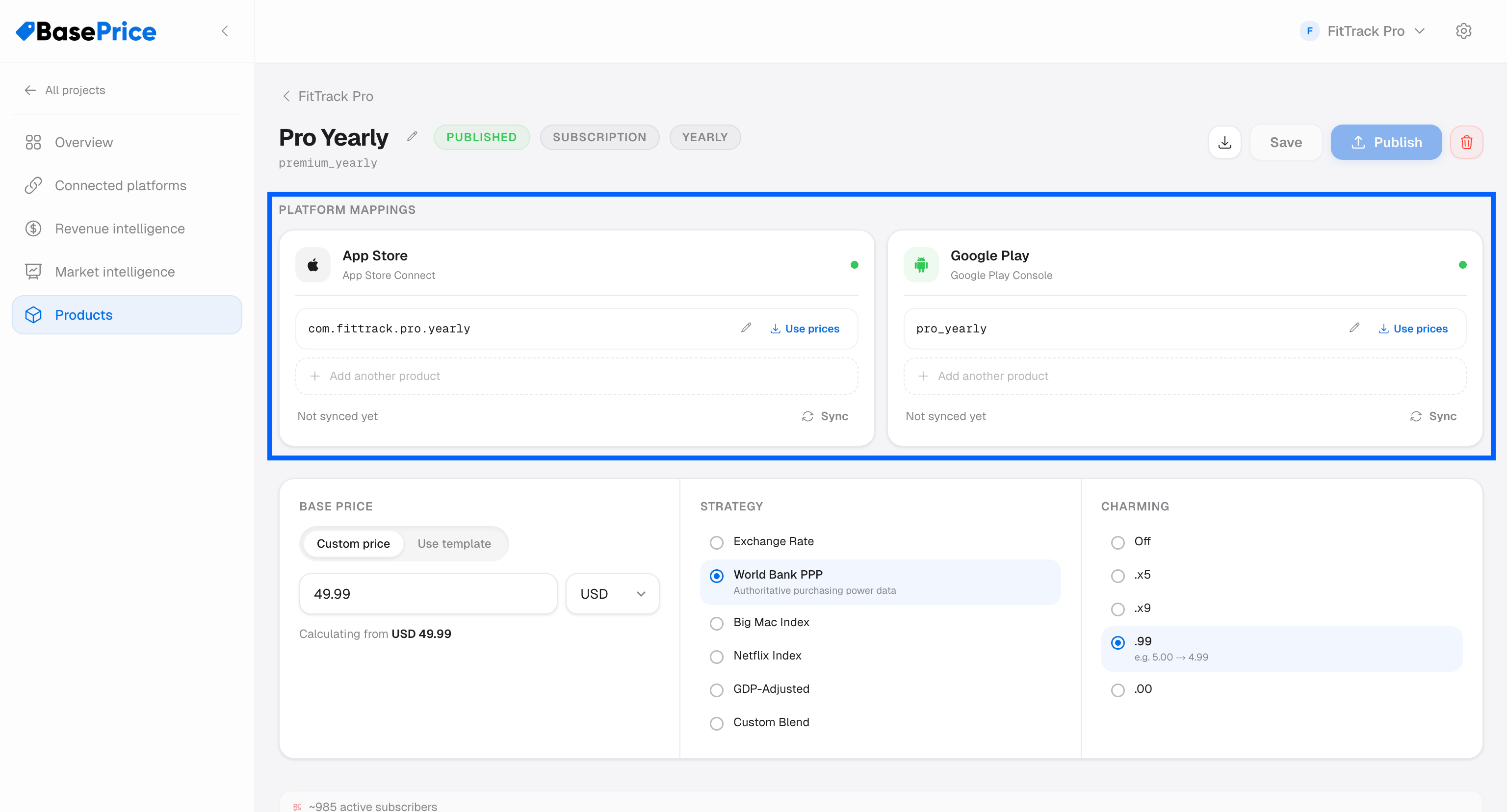
Link your Apple and Google product IDs to a single BasePrice product for unified pricing management. Map store identifiers to one canonical product entry.
What Are Platform Mappings?
A platform mapping links a native store product (like an App Store Connect IAP or Google Play subscription) to a BasePrice product. This is how BasePrice knows which store products to update when you publish prices.
One BasePrice product can map to multiple native products across platforms:
BasePrice Product: "Premium Yearly"
├── Apple App Store: com.app.premium.yearly
├── Apple App Store: com.app.premium.yearly.trial7d
├── Google Play: premium_annual
└── Google Play: premium_annual_trial
Why Multiple Mappings?
In practice, apps often have multiple store product variants for the same logical product:
- Trial variants —
pro_monthlyandpro_monthly_7day_trialare the same product with different introductory offers - Legacy products — Old product IDs that still have active subscribers
- Platform naming — Apple and Google may use different naming conventions
By mapping all variants to one BasePrice product, you manage pricing in one place.
Managing Mappings
Adding a Mapping
- Open your product's detail page
- In the Platform Mappings section, find the platform you want to add
- Use the search dropdown to find your native product ID
- Select the product to add it as a mapping
Removing a Mapping
Click the × button next to any mapped product to remove it. This won't delete the product from your store — it just unlinks it from BasePrice.
Store Product Keys
Internally, BasePrice uses a unique key to identify each mapped product. You'll see these keys referenced in the pricing table columns and publish history.
RevenueCat Indicators
If you've connected RevenueCat, the platform mappings section shows badges indicating which RevenueCat offerings include each mapped product. This helps you verify your RevenueCat configuration matches your BasePrice setup.