Connect Play Store
Set up your Google Play Console service account to publish localized prices to Google Play. Step-by-step guide with screenshots and permission setup.
To publish prices to Google Play, BasePrice uses the Google Play Developer API through a service account. You'll create the account in Google Cloud, grant it access in Google Play Console, then add the JSON key to BasePrice.
Setup
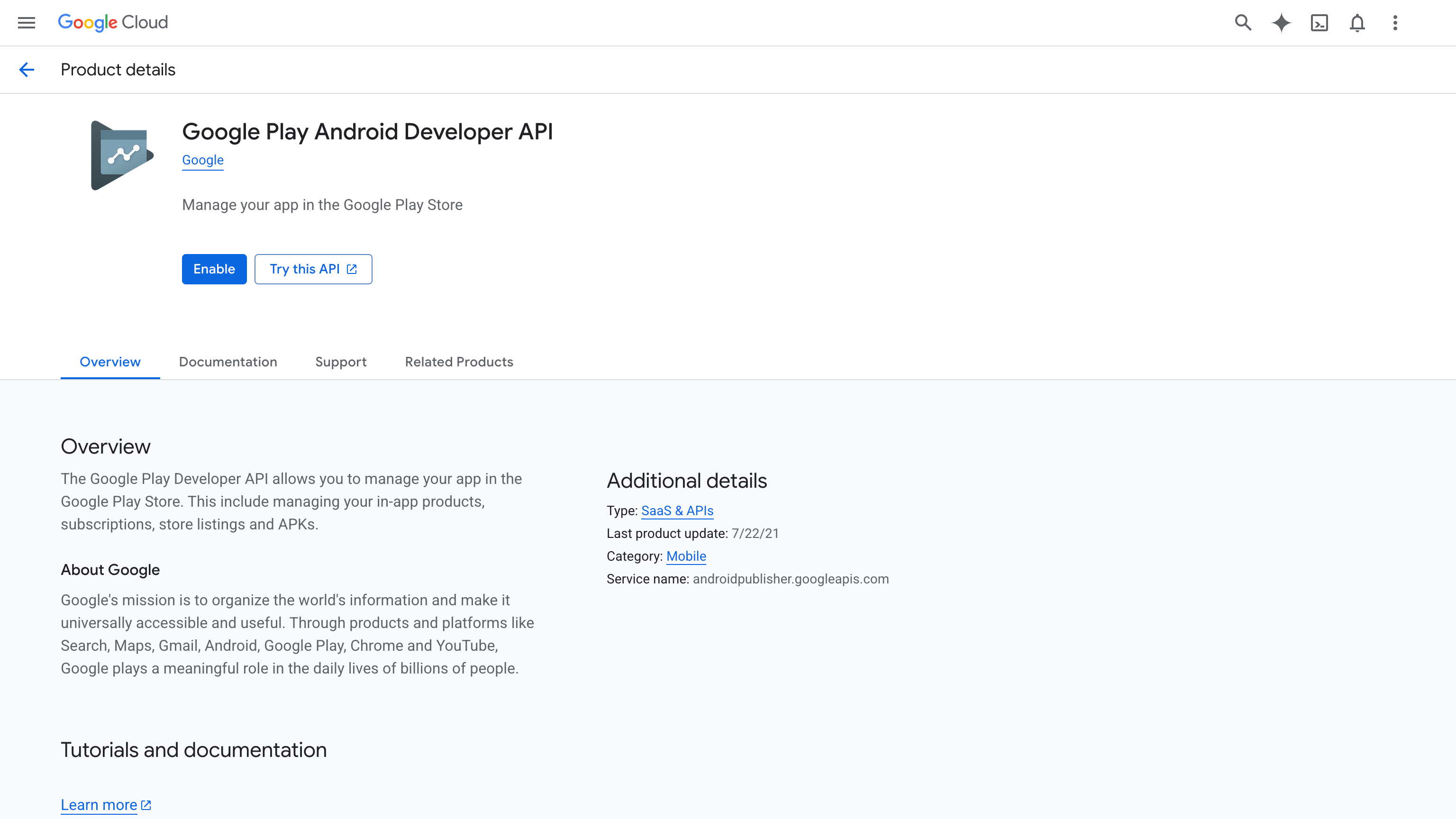
Enable the Google Play Developer API
- Open the Google Play Android Developer API page in Google Cloud Console
- Make sure the correct project is selected in the top-left dropdown
- Click Enable
Create a Service Account
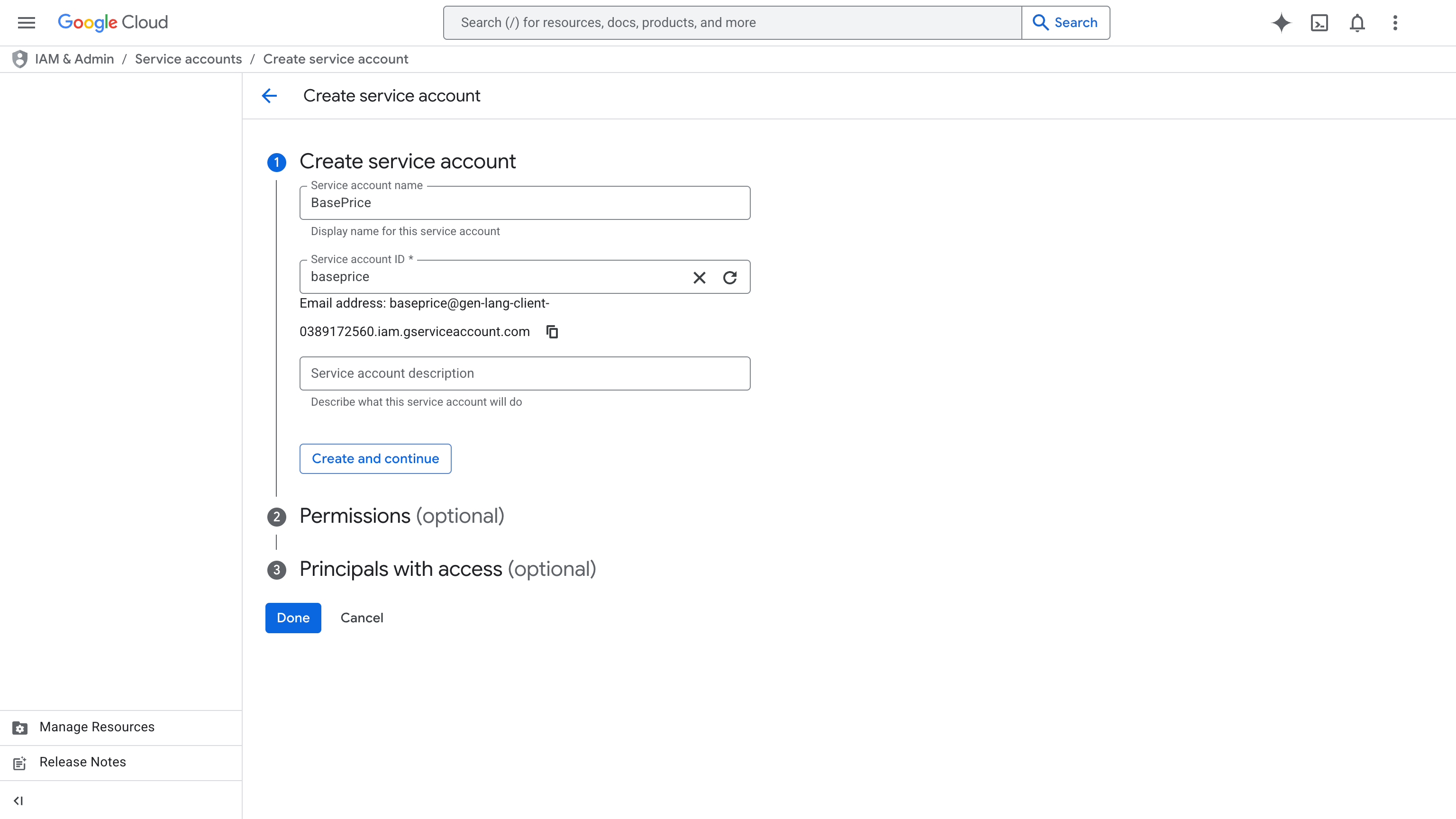
- In Google Cloud Console, go to IAM & Admin → Service Accounts
- Click Create Service Account
- Enter a name (e.g.,
BasePrice) — a service account ID and email will be generated automatically - Skip the optional Permissions and Principals steps — no Cloud roles are needed
- Click Done
Download the JSON Key
- In the service accounts list, click the account you just created
- Go to the Keys tab
- Click Add Key → Create new key → select JSON → Create
- The key file downloads automatically — save it somewhere safe
This JSON file grants API access to your Google Play account. Store it somewhere safe until you've added it to BasePrice.
Grant Access in Google Play Console
-
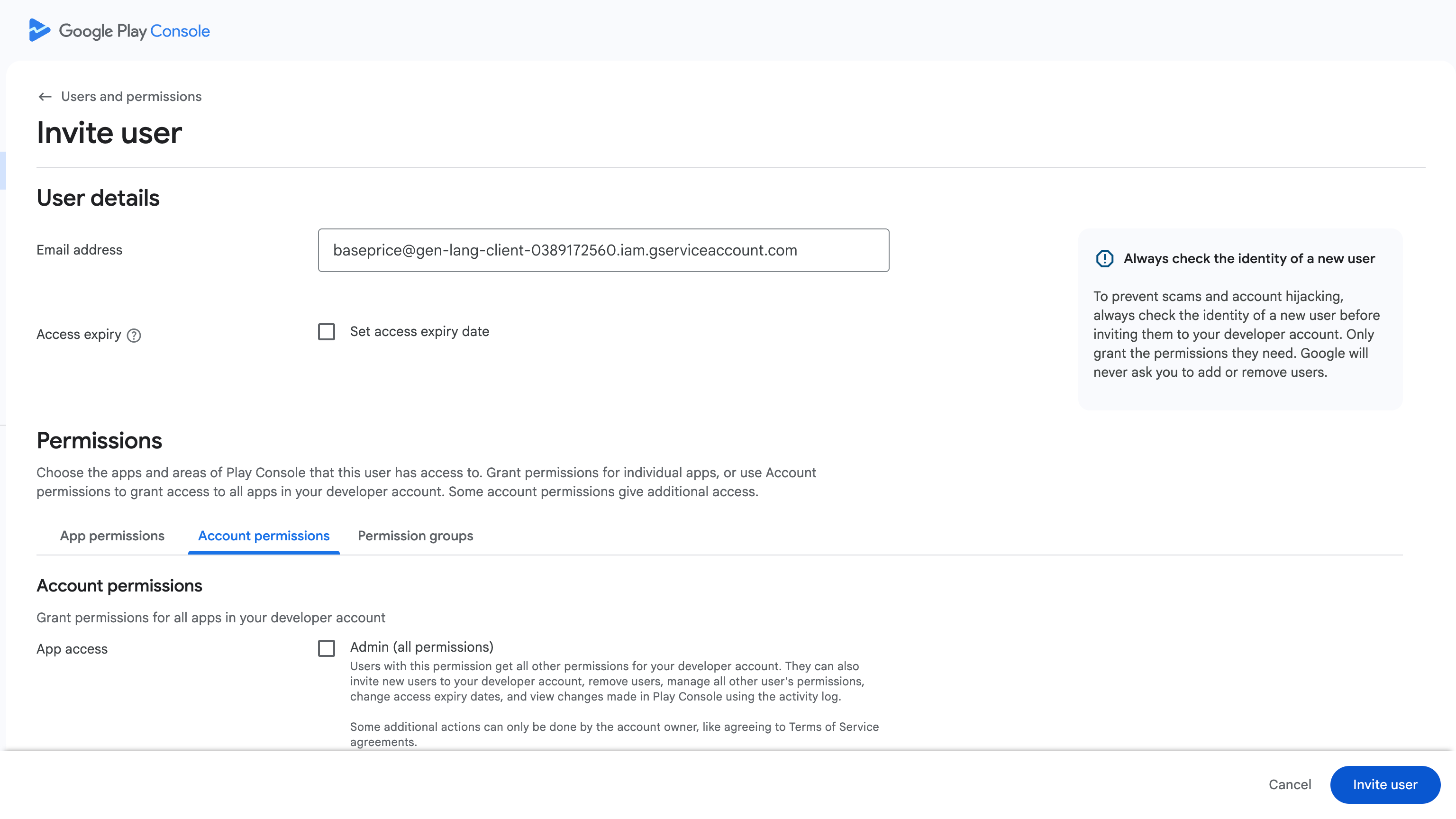
Open Google Play Console → Users and permissions
-
Click Invite new users and paste the service account email from Step 2
-
Open the Account permissions tab and enable all four permissions below:
Category Permission App access View app information and download bulk reports (read-only) Financial data View financial data, orders, and cancellation survey responses Financial data Manage orders and subscriptions Store presence Manage store presence -
Click Invite user (for an existing user, click Apply → Save changes)
Every permission here can be granted at either level — the only difference is how wide the access is:
- Account permissions apply to every app in your developer account, including apps you add later. Simplest to set up, and you won't have to grant access again when you publish a new app.
- App permissions apply only to the specific app(s) you add. Best if you want to limit BasePrice to a single app (least privilege).
We recommend granting all four under Account permissions for simplicity. If you'd rather scope access to one app, add that app under the App permissions tab and grant the same four permissions there instead.
Permissions can take up to 36 hours to propagate. If you get permission errors right after setup, wait and retry.
Add to BasePrice
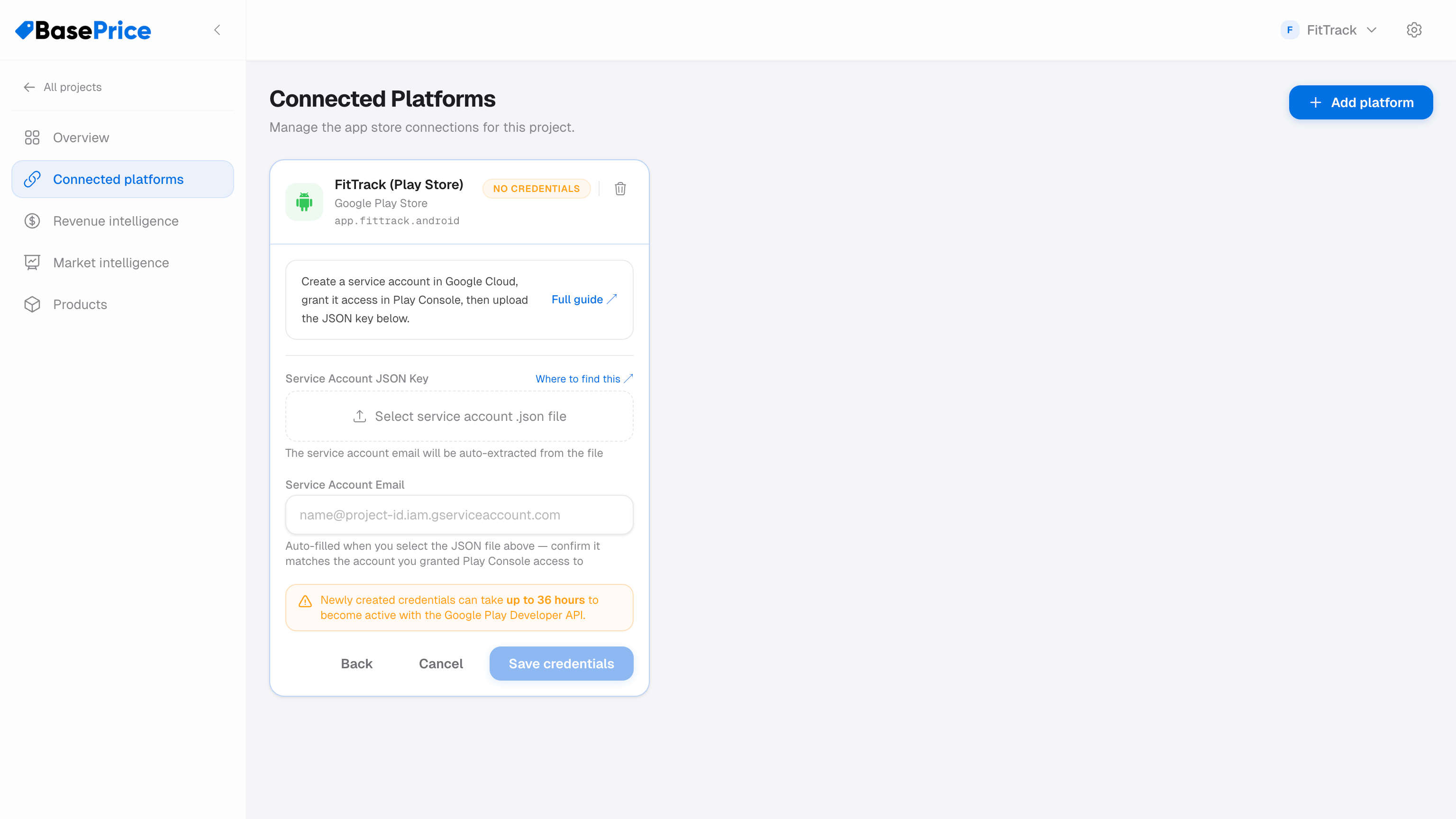
- In BasePrice, go to Connected Platforms and add Google Play
- Upload or drag-and-drop the JSON key file you downloaded in Step 3
- The Service Account Email will be auto-filled — confirm it matches the one you invited in Play Console
- Click Save credentials
Troubleshooting
| Issue | Solution |
|---|---|
| "Permission denied" | Most often the service account is missing Manage store presence (one-time products) or Manage orders and subscriptions (subscriptions) — the permissions that authorize price updates. Confirm all four permissions from Step 4 are enabled. Permissions can take up to 36 hours to propagate. |
| "API not enabled" | Enable the Google Play Android Developer API in Google Cloud Console (Step 1). |
| "Invalid key" | Make sure you're uploading the full .json key file, not just a portion of it. |