Connect Google
Set up your Google Play Console service account to publish prices to Google Play.
Overview
To publish prices to Google Play, BasePrice uses the Google Play Developer API via a service account. This requires creating a service account in Google Cloud Console and granting it access in Google Play Console.
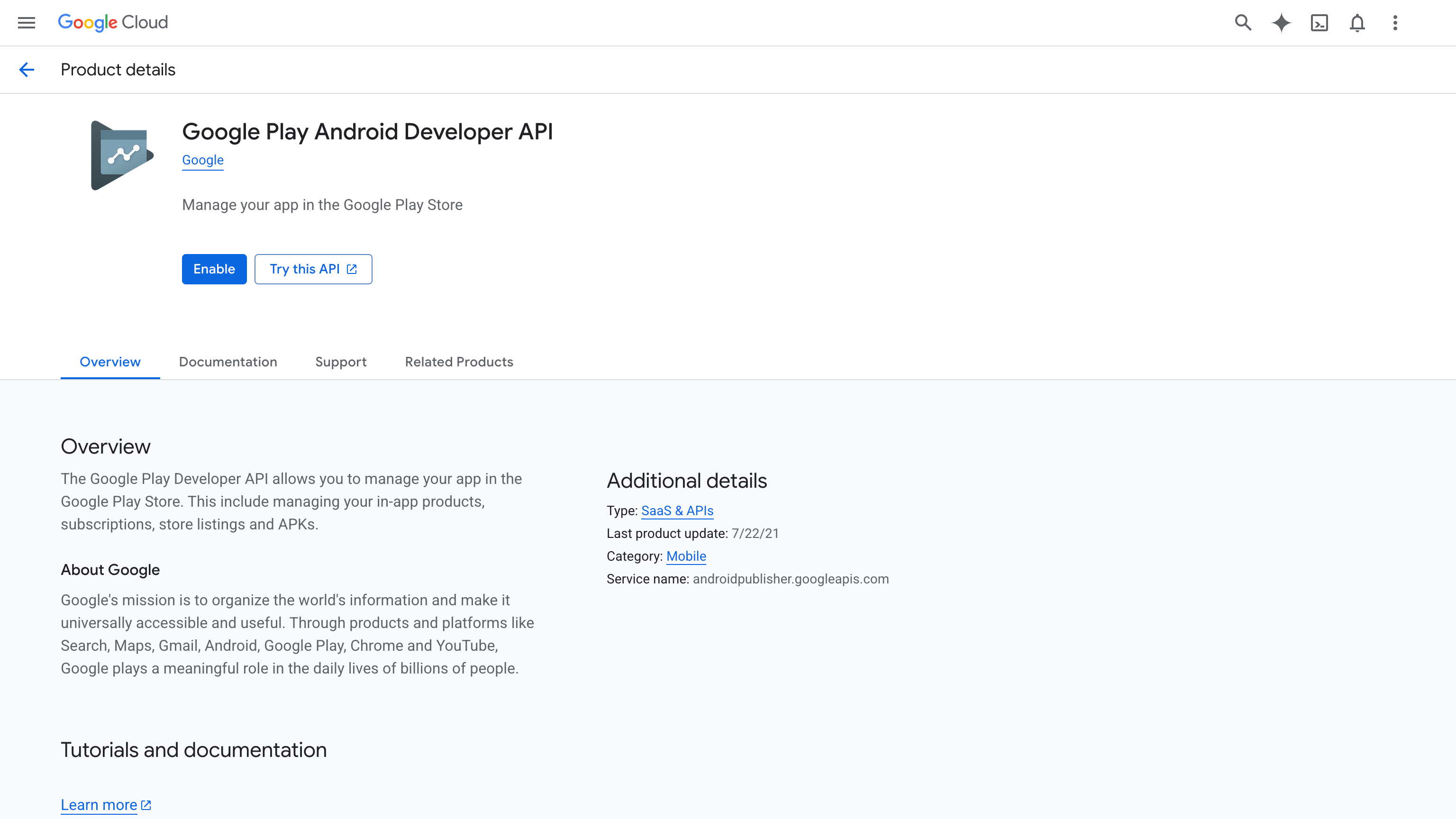
Step 1: Enable the API
- In Google Cloud Console, enable the Google Play Android Developer API for your project
Step 2: Create a Service Account
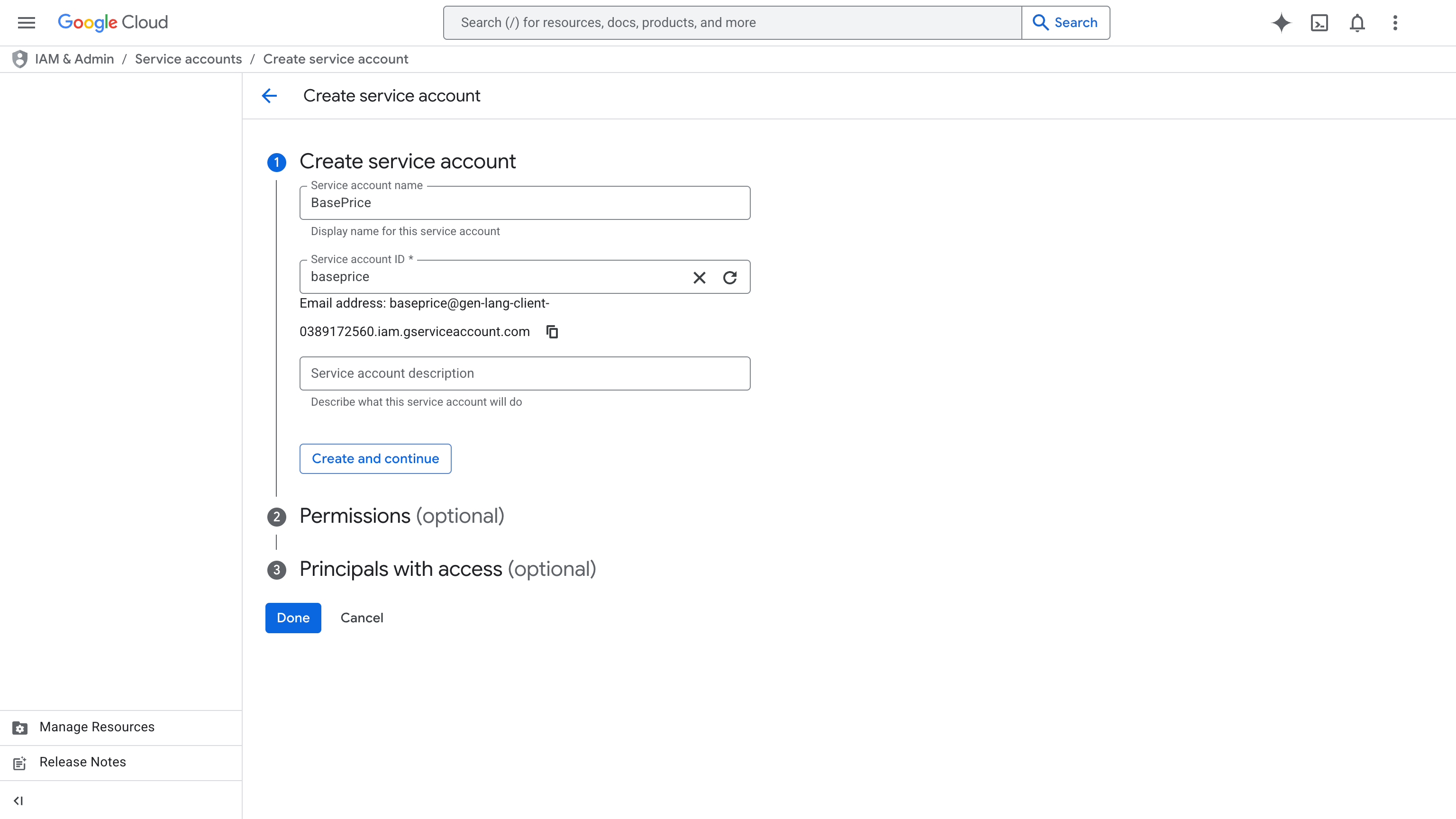
- Go to IAM & Admin → Service Accounts → Create Service Account
- Name it (e.g., "BasePrice Integration")
- No extra Cloud roles needed
- Under Actions → Manage Keys, create a new JSON key and download it
⚠️Keep this key secure
This JSON key grants API access to your Google Play account. Store it securely and never commit it to version control.
Step 3: Grant Access in Google Play Console
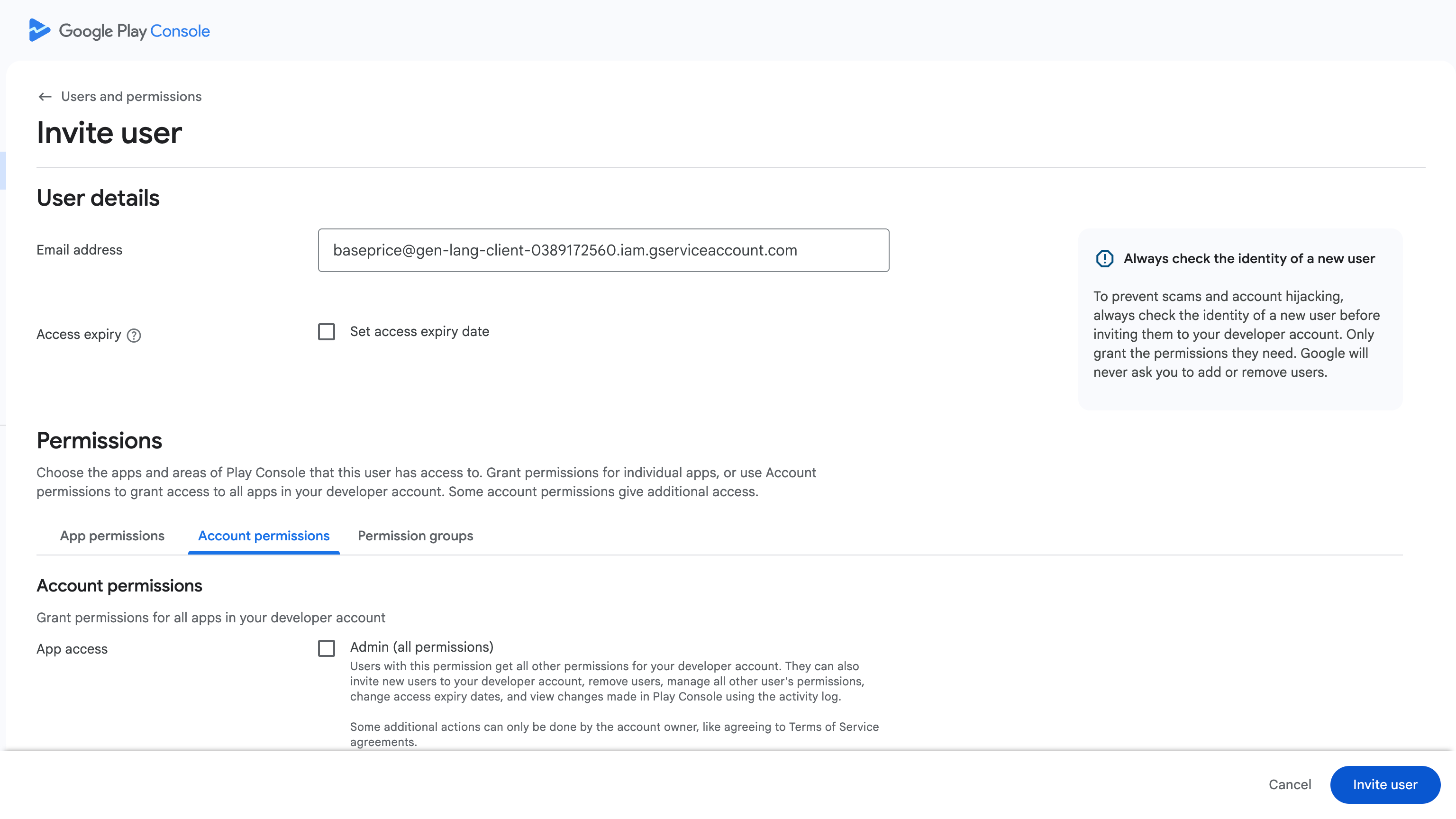
- In Google Play Console → Users and Permissions → Invite user, enter the service account email
- Under Account permissions, grant:
- View app information (read-only)
- View financial data, orders & cancellation survey
- Manage orders and subscriptions
- Under App permissions, add your app and grant Manage store presence (required to update one-time IAP prices)
💡Propagation delay
It can take up to 24 hours for Google Play Console permissions to fully propagate. If you get permission errors, wait and retry.
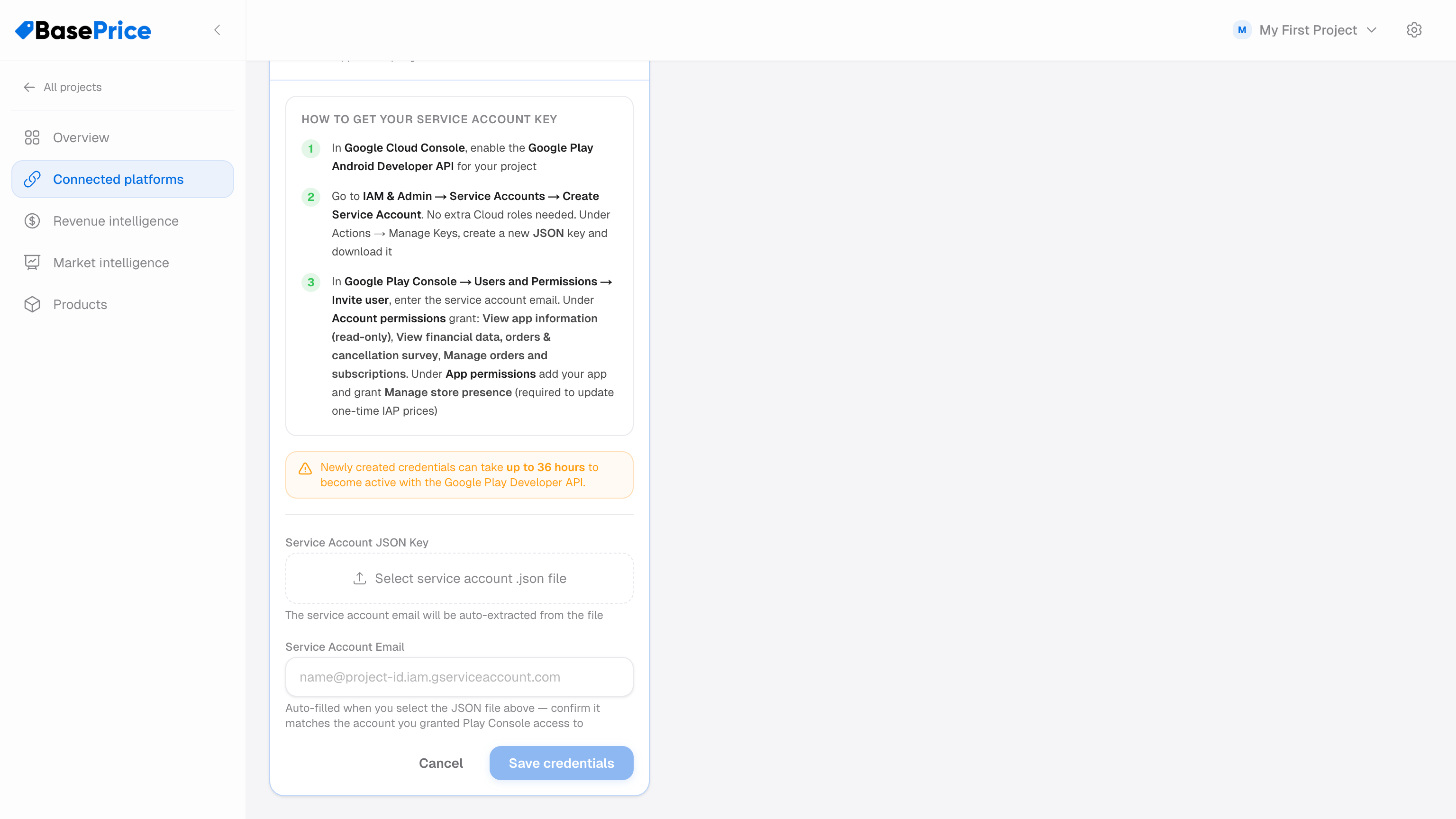
Step 4: Add to BasePrice
- Open your project in BasePrice
- Go to the Platforms tab
- Click Add Platform → Google Play
- Upload or paste the contents of your service account JSON file
- Click Save
Troubleshooting
| Issue | Solution |
|---|---|
| "Permission denied" | Ensure the service account has been invited in Google Play Console with the correct permissions (Step 3). It can take up to 24 hours for permissions to propagate. |
| "API not enabled" | Enable the Google Play Android Developer API in Google Cloud Console (Step 1). |
| "Invalid key" | Ensure you're using the full JSON key file, not just the private key portion. |